How to record a purchase or buy.
updated 3 months ago
A "Purchase" or "Buy" refers to the acquisition of goods or services by a business. When a business buys something, it involves spending money, and this transaction needs to be accurately recorded in the accounting system.
Recording a Purchase on Simplebks: A Step-by-Step Guide
Step 1: Log in to your Simplebks account at www.simplebks.com.
Step 2: Navigate to "Quick Expenses" on the sidebar.
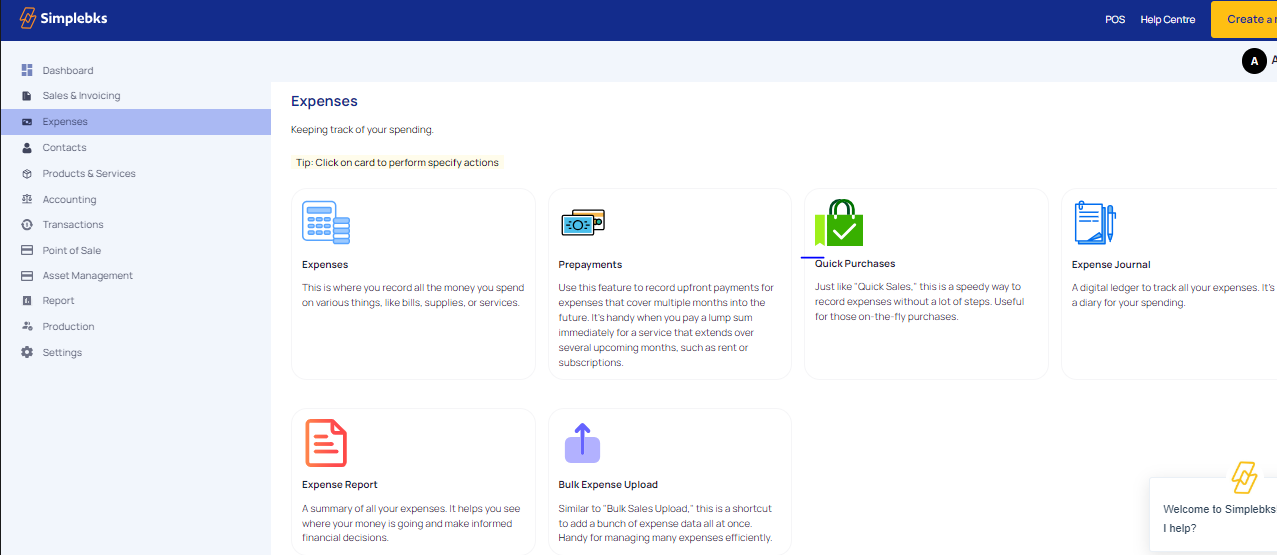
Step 3: Select "Quick Purchases."
Step 4: Fill in the necessary details:
Transaction Date: Specify the date of the purchase.
Description: Provide a brief description of the purchase.
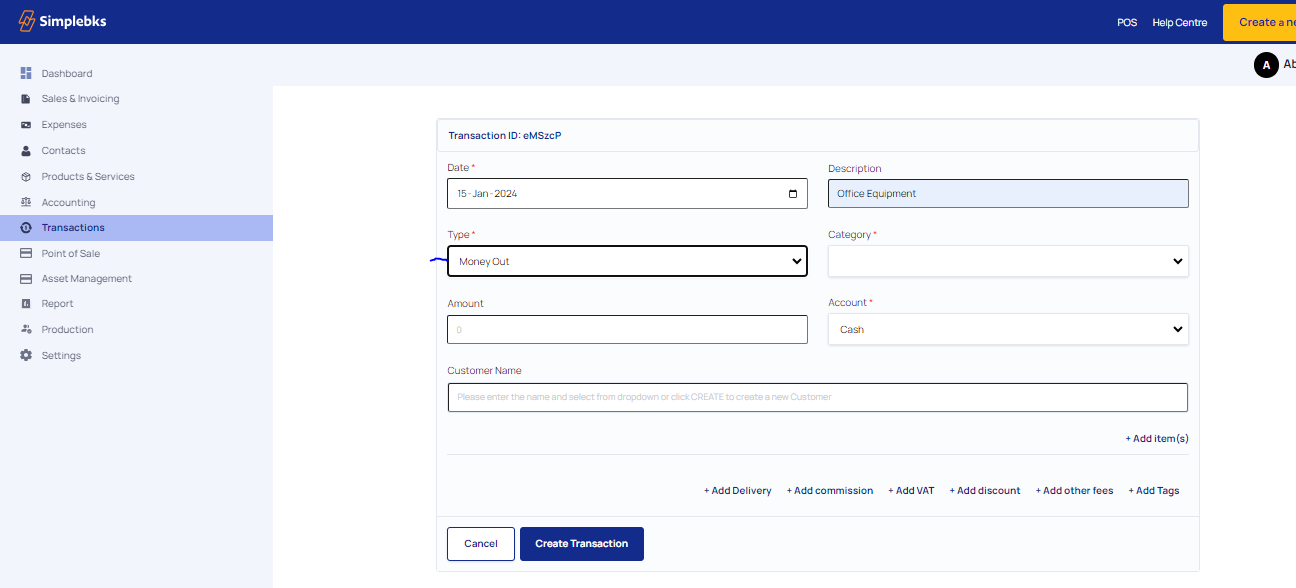
Step 5: Adjust the transaction type:
Change the transaction type to "Money Out" to reflect the expenditure.
Step 6: Specify purchase details:
Category: Select "Purchases" to categorize the transaction.
Enter the Amount: Indicate the total amount spent.
Account: Choose the appropriate account for the expenditure.
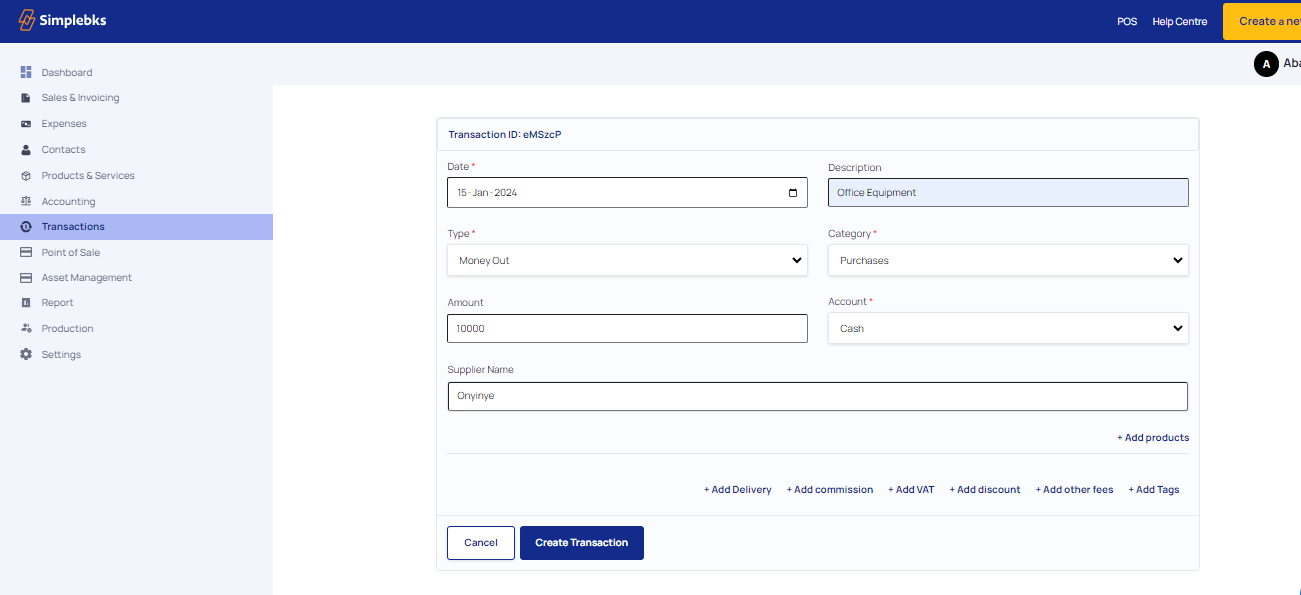
Step 7: Provide supplier information:
Enter Supplier Name: Specify the name of the supplier.
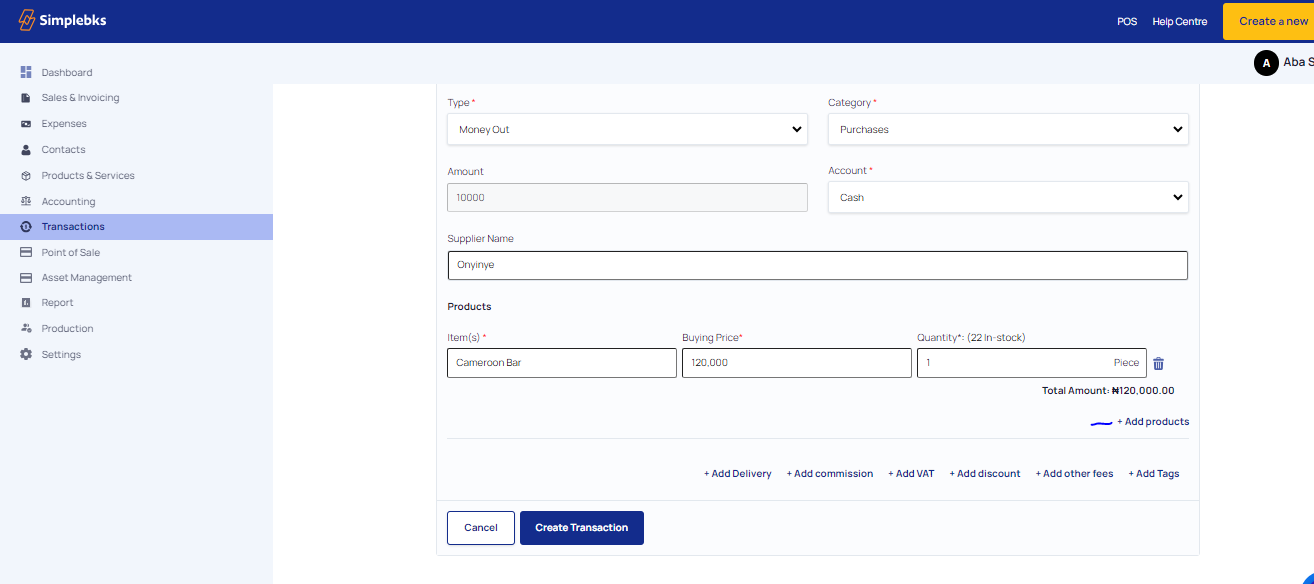
Step 8: Add more items if needed:
Click on "Add Products" to include additional items in the purchase.
Step 9: Include additional details if applicable:
You can also add information about delivery, commission, VAT (if applicable), discounts, and other fees.
Step 10: Confirm the transaction:
Click on "Create Transaction" to finalize the purchase entry.
Step 11: Verify the transaction:
Receive confirmation that the transaction has been successfully created.
Step 12: Document the transaction:
Click on "Print" to obtain a physical copy or download the receipt as a PDF.
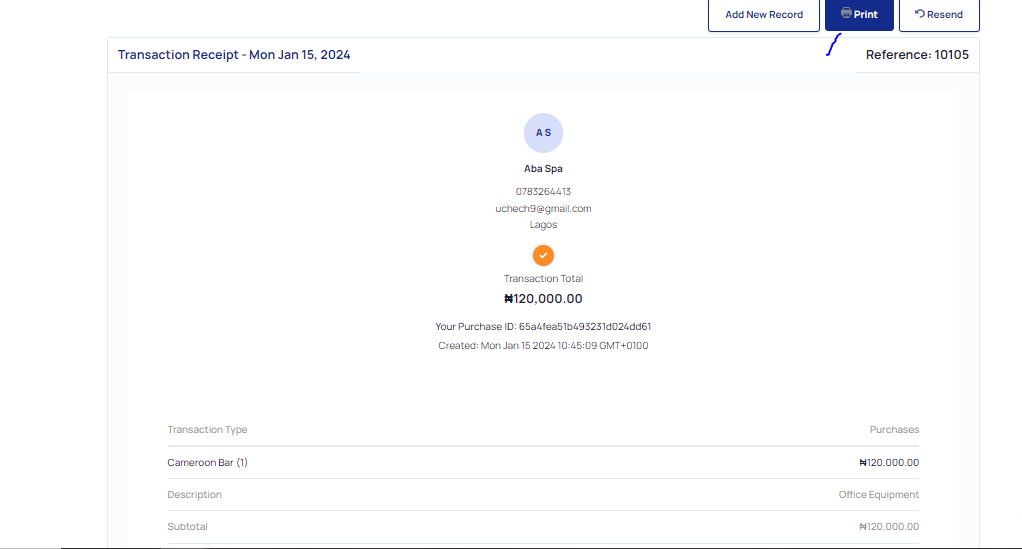
By following these steps, you can accurately record purchases in Simplebks, ensuring proper documentation and tracking of your business expenses.
Was this article helpful?