How To Record Expenses.
updated 3 months ago
This is the money your business spends on its day-to-day operations. This includes things like rent, employee salaries, supplies, and more.
Here's to Record Expenses
Step 1: Log in to Simplebks
Open your internet browser and go to www.simplebks.com.
Log in to your Simplebks account to access your dashboard.
Step 2: Record an Expense
On your dashboard, find and click on "Expenses" in the menu.
Once in the Expenses section, click on "Expenses" again.
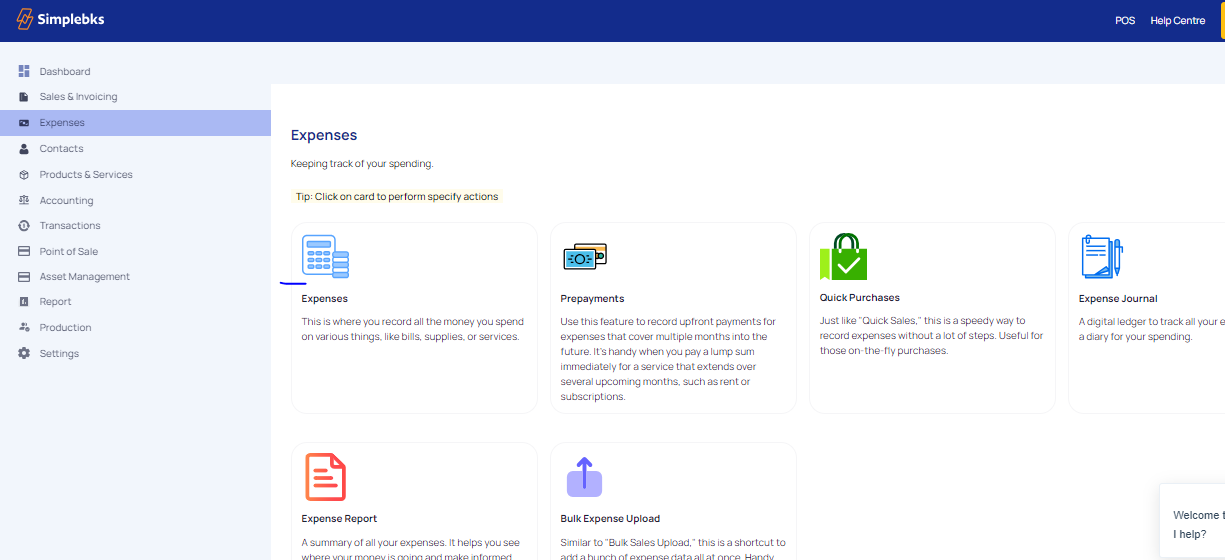
Step 3: Fill in Expense Details
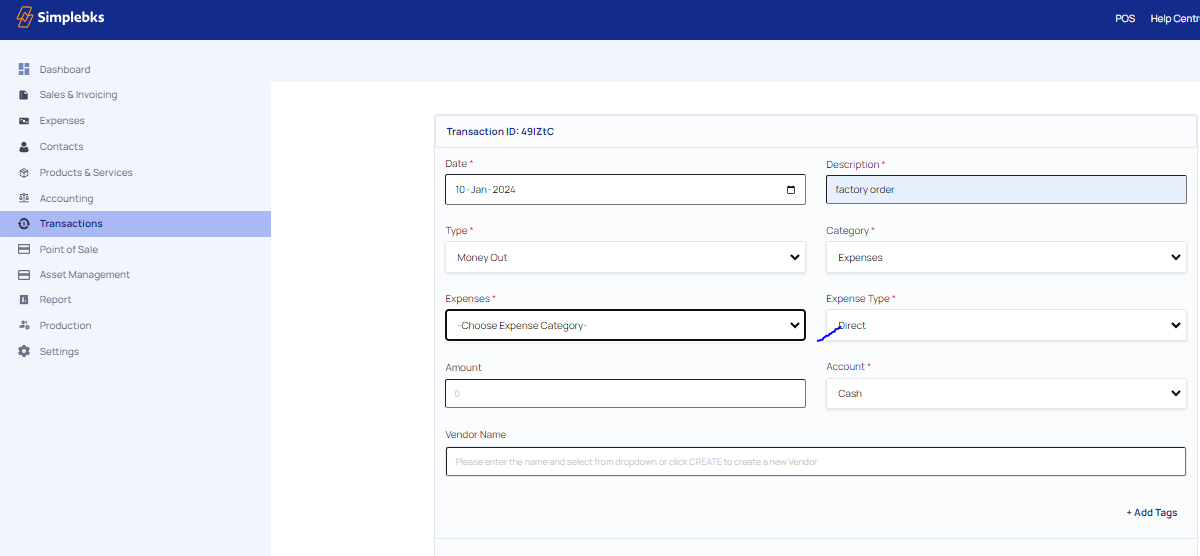
Enter the date when the expense occurred.
Describe the expense briefly.
Choose "Money out" for the type (indicating an outgoing payment).
Select the category that best fits the expense type.
Step 4: Specify Direct or Prepaid
Indicate whether the expense was direct or prepaid.
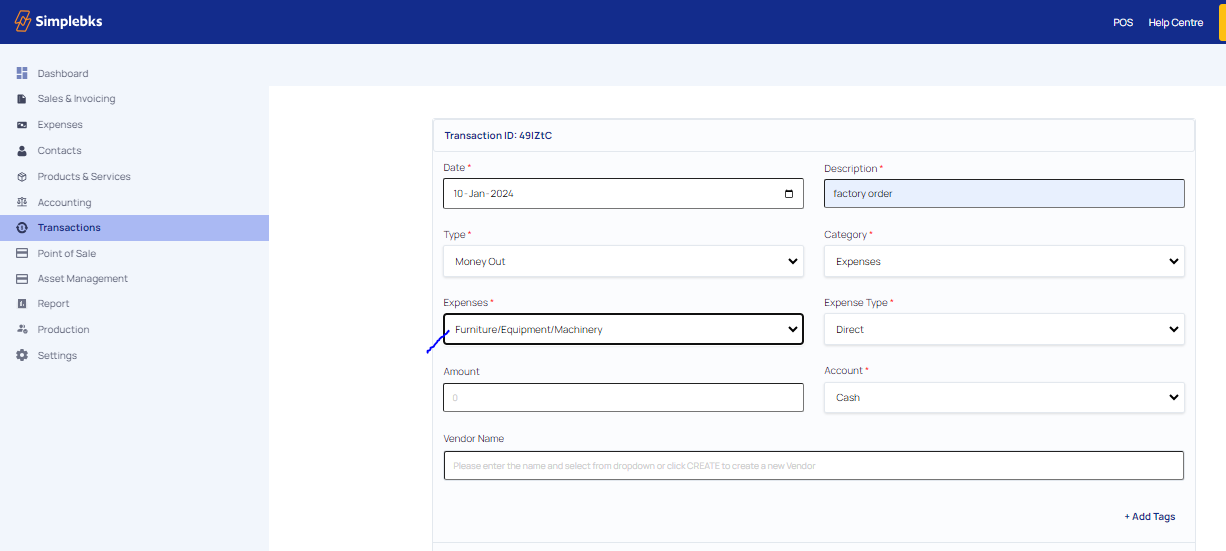
Step 5: Choose Expense Category
From the provided list, pick the specific expense category relevant to your transaction.
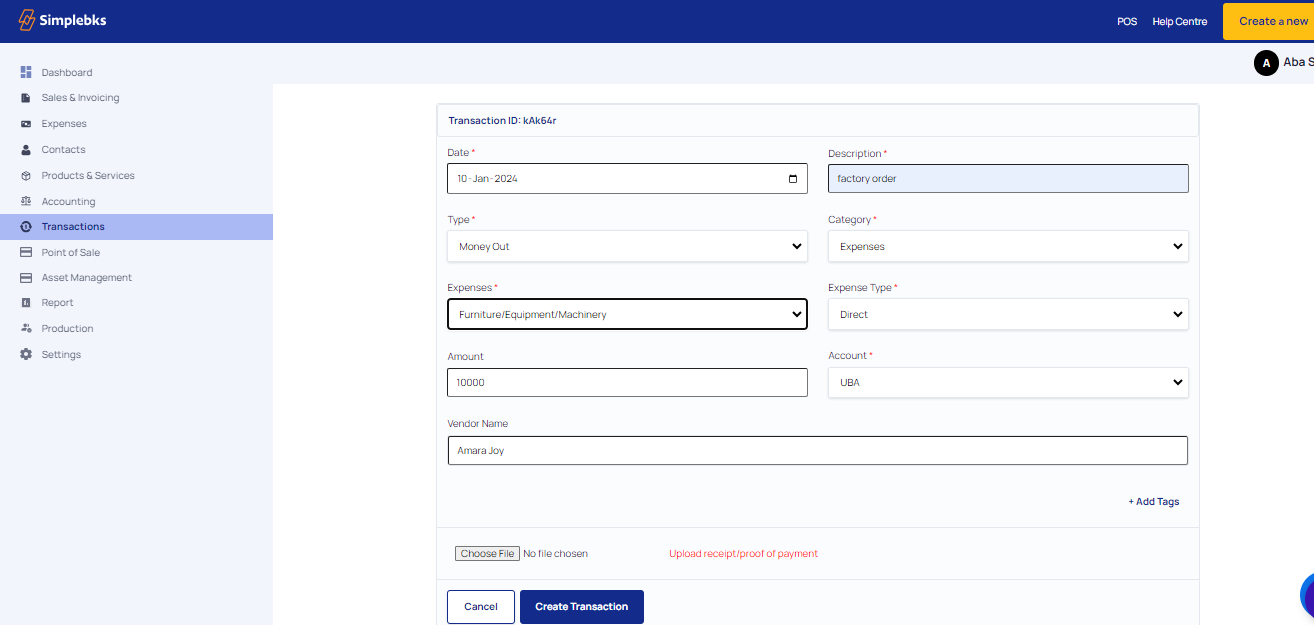
Step 6: Enter the Amount and Payment Details
Input the amount spent.
Choose the account from which the money was paid (cash or bank).
Provide the name of the vendor (the person or company you paid). If it's a new vendor, click on "Create New Vendor."
Step 7: Attach Receipt or Proof
Upload a receipt or proof of payment by clicking on "Choose a file" and selecting the file from your device.
Step 8: Finalize the Transaction
Confirm and complete the process by clicking on "Create Transaction."
Step 9: Create a New Vendor (If Needed)
If the vendor is new, enter their First Name, Last Name, Phone Number, and Email.
Click "Submit" if no additional information is available.
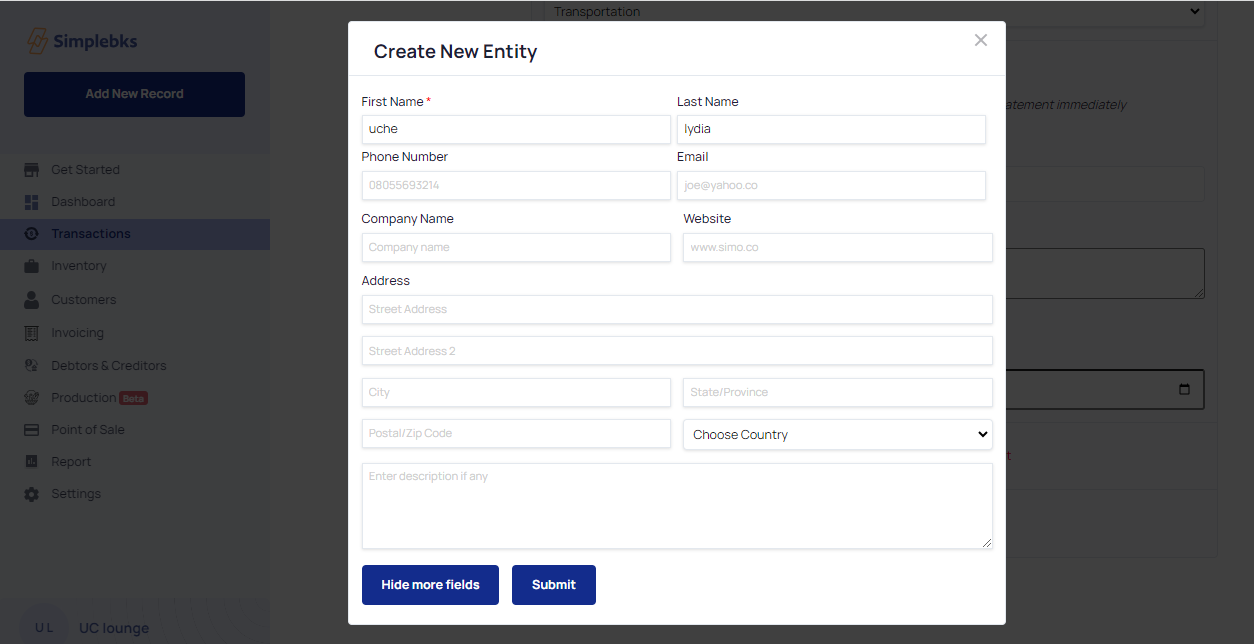
Step 10: Confirm Vendor Creation
The new vendor entity will be successfully created.
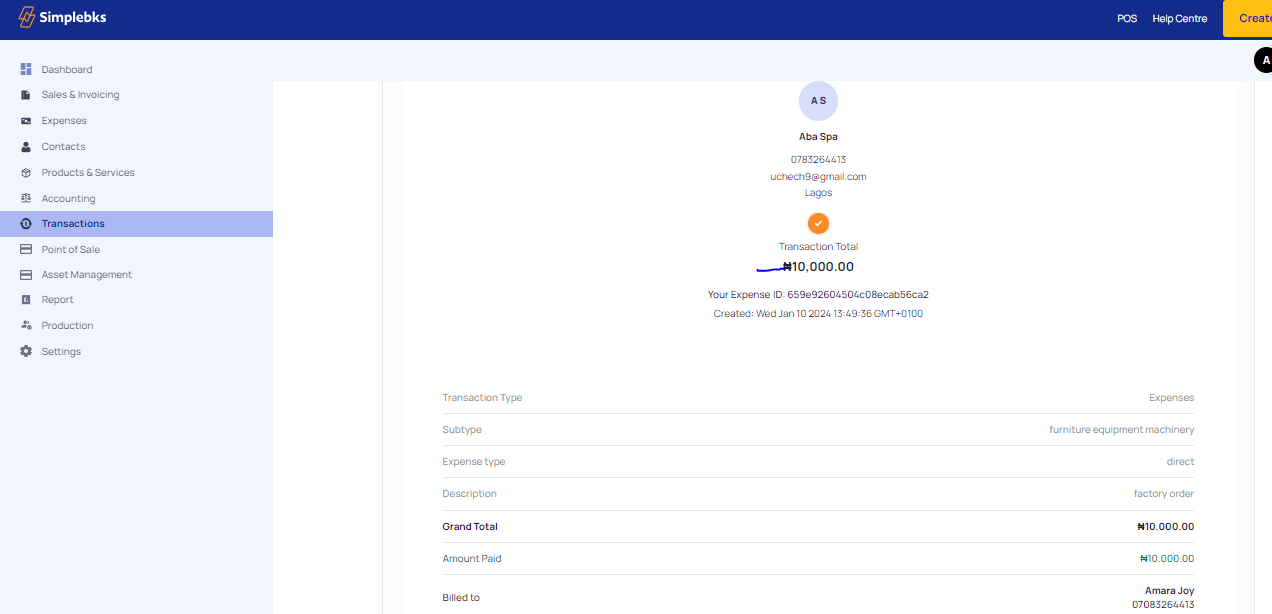
Step 11: Additional Information - Creating Bank Accounts or Payment Channels
To create a new bank account or payment channel, go to "Account Settings" and then "Payment Type."
Congratulations! You've successfully recorded your expenses.
Was this article helpful?