How to invite team members/staff to your Simplebks account.
updated 4 months ago
In this article:
How do I go about adding my staff/partners to Simplebks?
For new accounts created,
Click on the "Get Started" tab on the left sidebar
Click on Add team member >> Add new team member
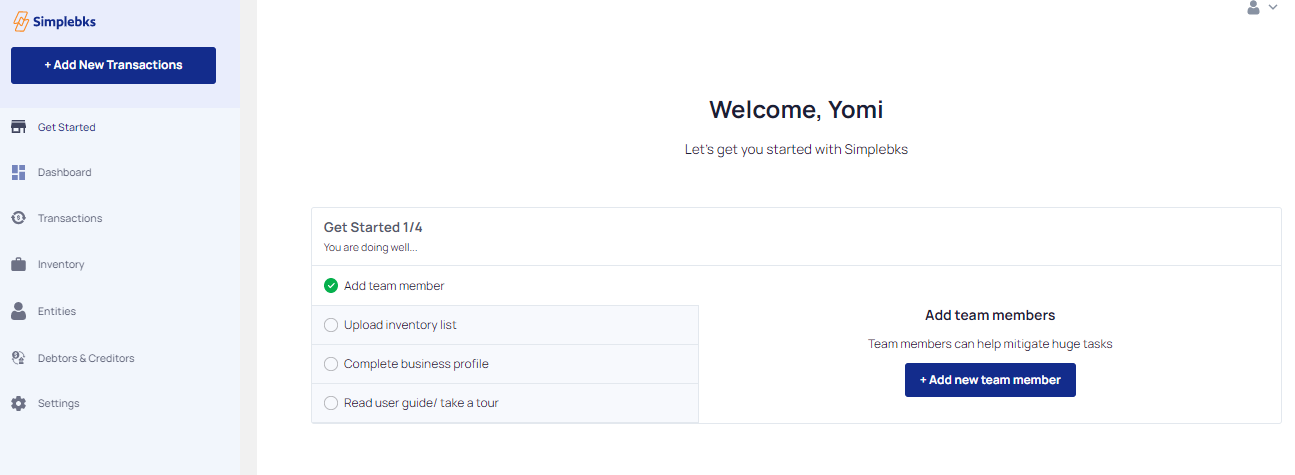
For existing customers
First, go to Settings > Move to Teams.
Click on Invite someone
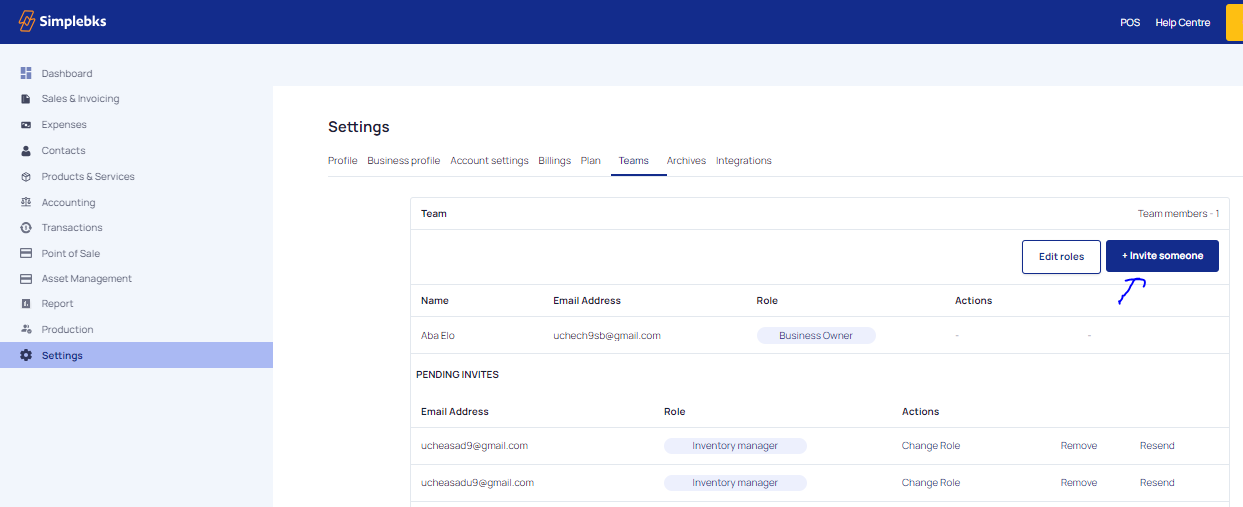
Enter a valid email for the staff, and select Role from the drop-down.
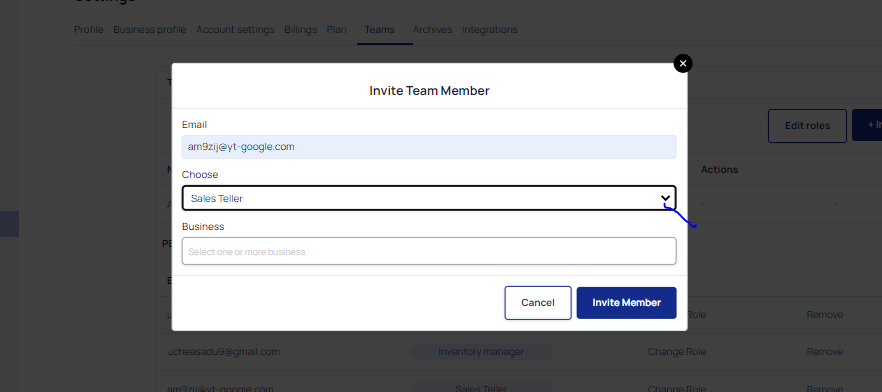
Select the business type if you deal with "Multiple businesses"
Select one or more businesses> Click on Invite Member
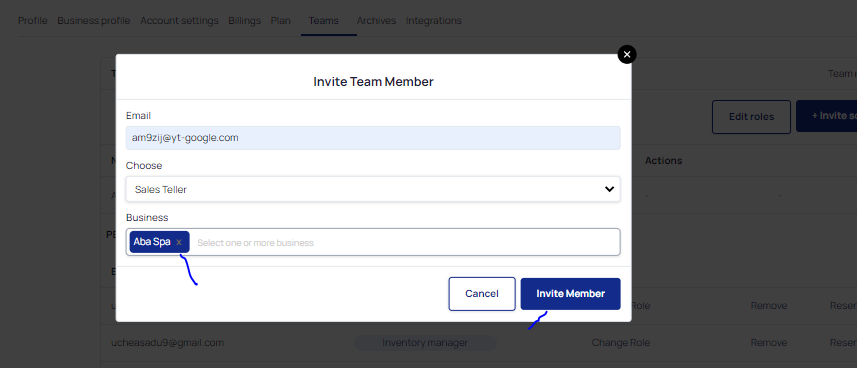
Invite sent and team member has successfully been added
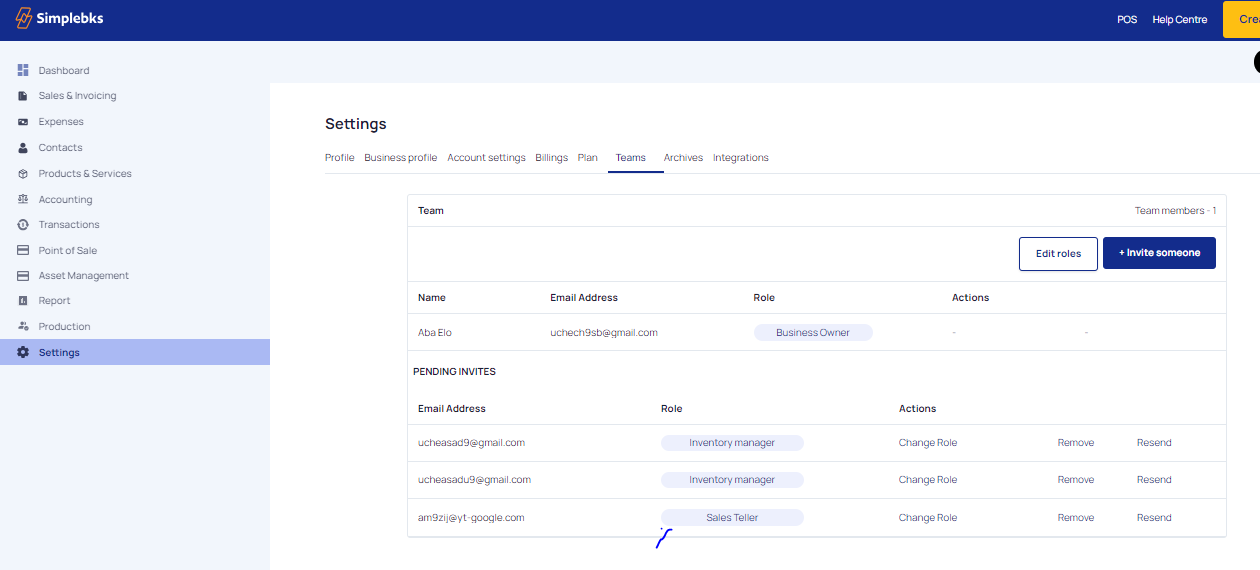
Sales Teller: Can record only sales transactions and view only sales report that was conducted by the staff. This profile is ideal for Sales Teller or Cashier in your store.
Branch Manager: Have full access to the account without the ability to remove or add other staff members.
Owner: Has full access.
7. An invitation email is automatically sent to the email address. When they click on this email, they'll be added to your business.
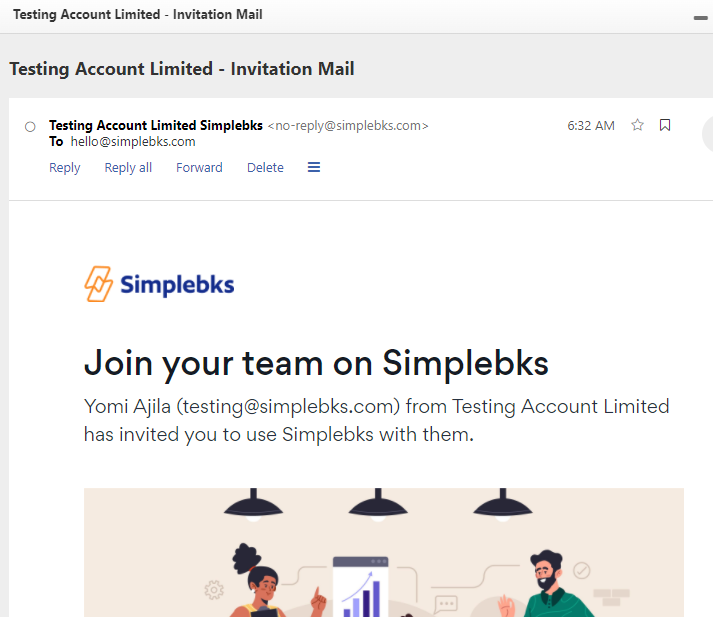
To learn how to activate your account when invited into Simplebks
Was this article helpful?