How to create products.
updated 3 months ago
A product is an article or substance that is manufactured, purchased or refined for sale. On Simplebks, this can be a physical product or service being rendered by a company.
How do I create my products on Simplebks?
Step 1: Log in to your Simplebks account at www.simplebks.com.
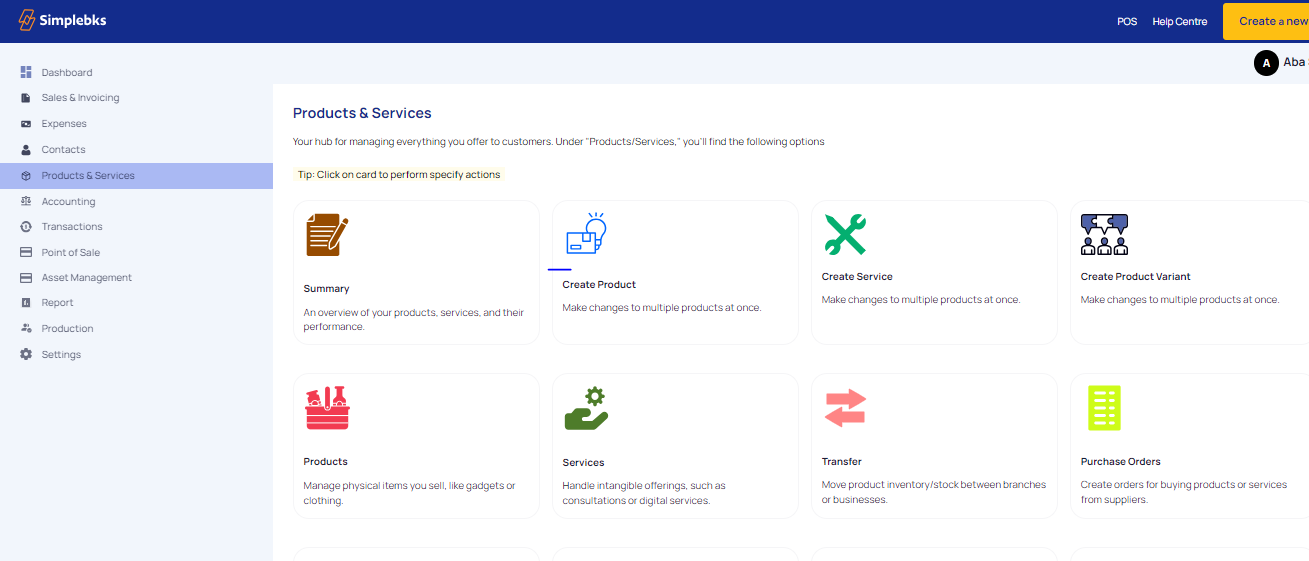
Step 2: Click on "Products & Services" on the sidebar.
Step 3: Click on "Create Product".
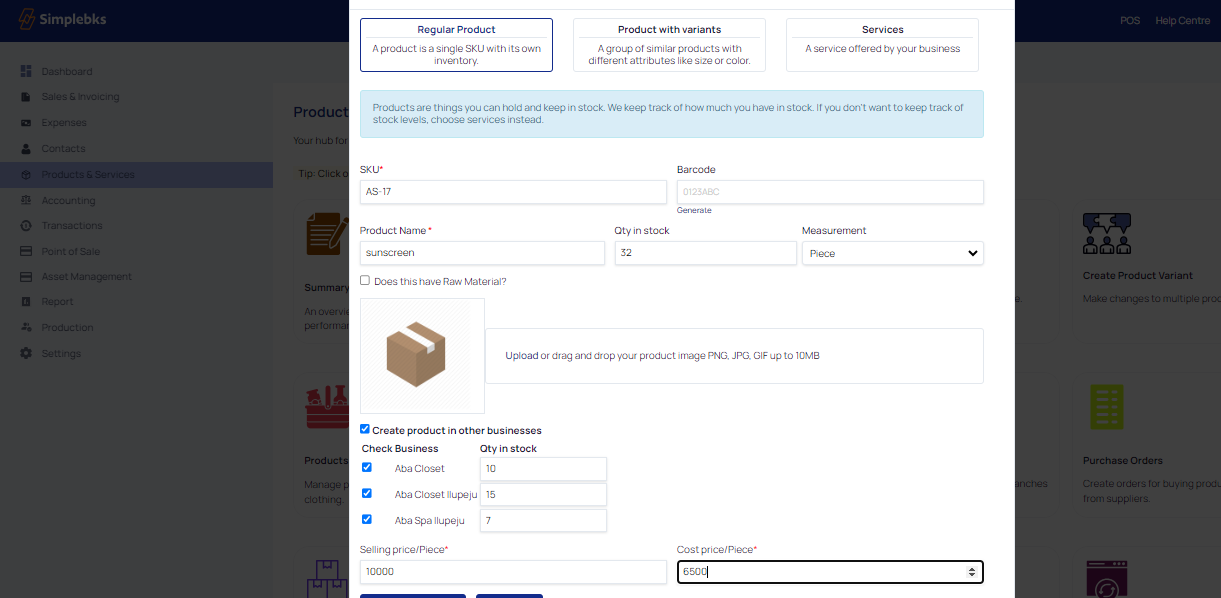
Step 3: Enter details for a regular product:
Sku: It is automatically generated from Simplebks.
Barcode: It is automatically generated from Simplebks.
Product Name: Specify the name of the product.
Quantity in Stock: Input the current stock quantity.
Measurement: Indicate the unit of measurement.
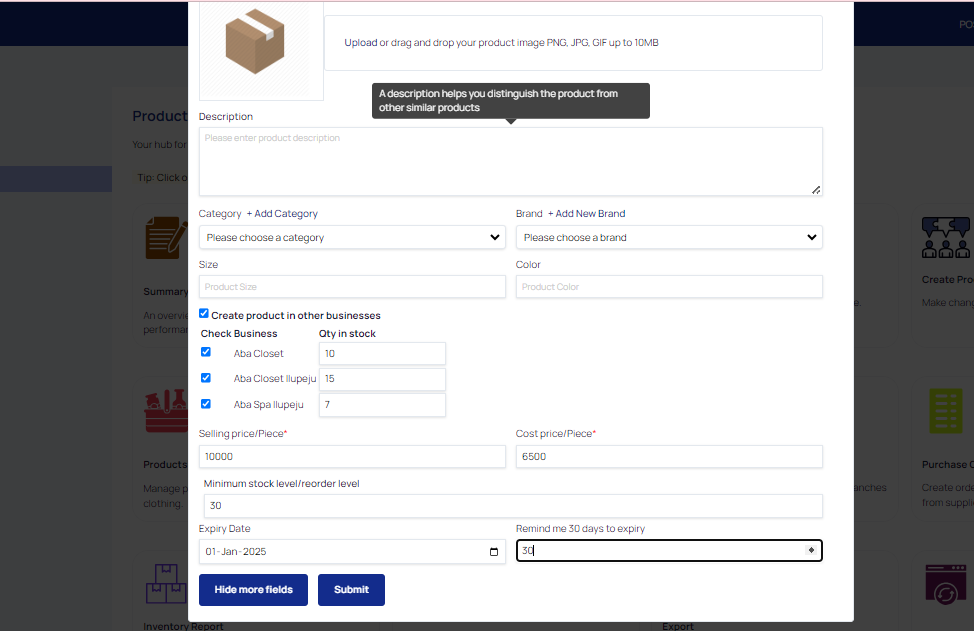
Step 4: Provide additional information:
Category: Choose where you want to place the product.
Brand: Enter a distinguishing name for the product.
Size and Color: Specify these attributes for the variant.
Step 5: If the product has raw materials:
Check the box below and add quantities for raw materials if applicable.
Step 6: Set pricing information:
Selling Price: Enter the selling price.
Cost Price: Specify the cost price.
Step 7: Expand details with more fields:
Click on "Add more fields."
Step 8: Define stock management parameters:
Minimum Stock Level: Set the minimum quantity to avoid stockouts.
Expiry Date: Enter the product's expiration date.
Remind me days to expire: Specify the reminder duration.
Step 9: Submit the product:
Click on "Submit" to create the product successfully.
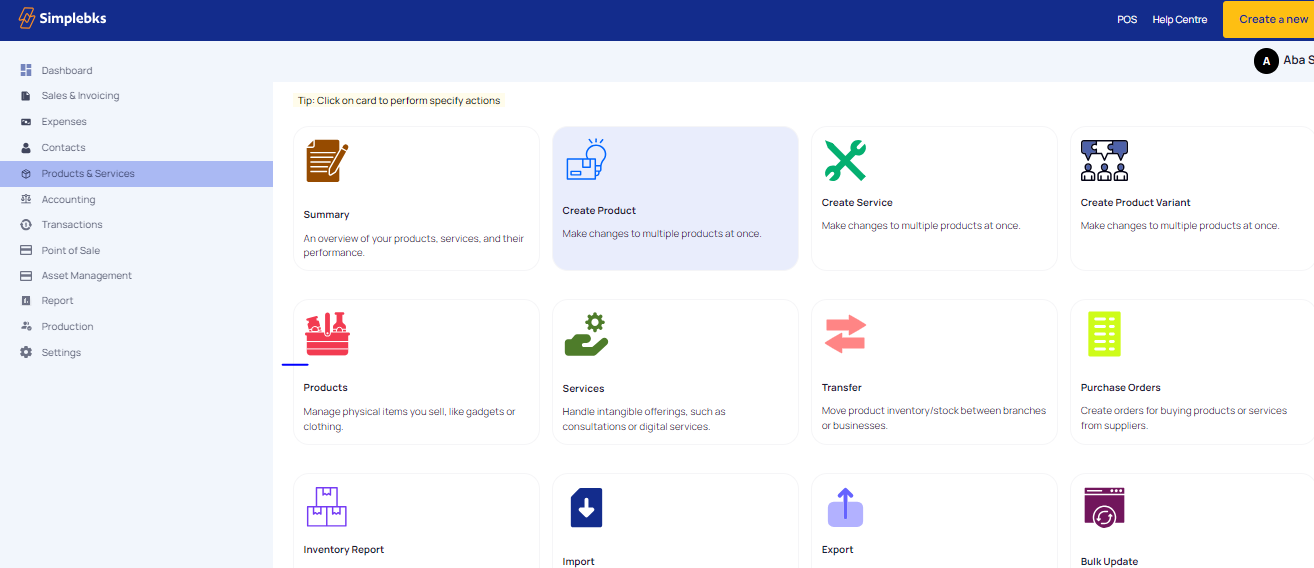
Step 10: Verify the creation:
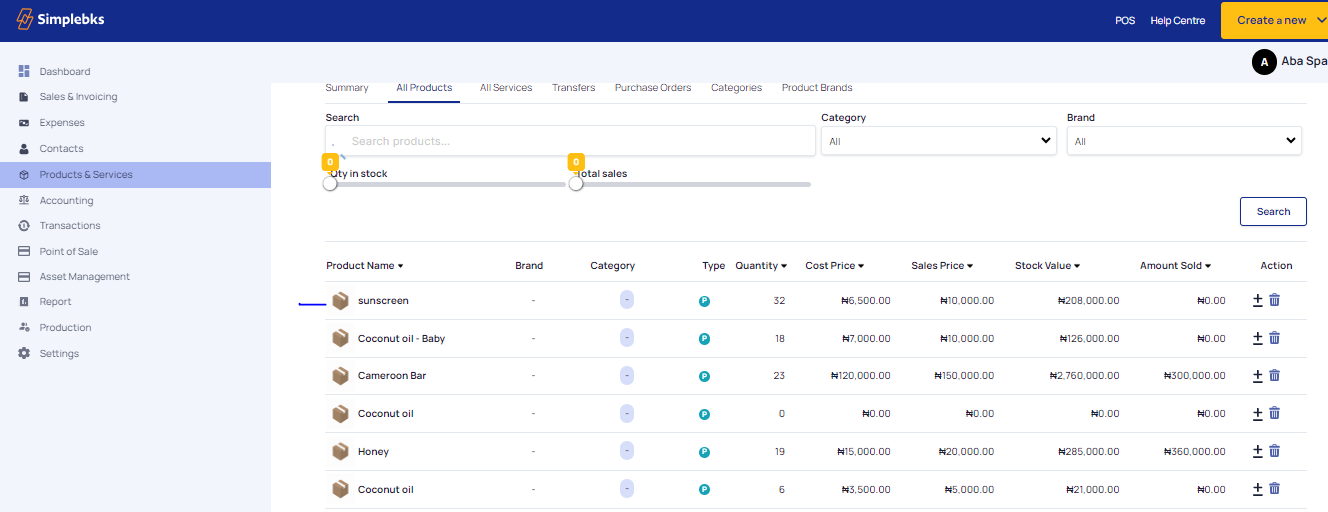
Go back to "Products & Services" on the sidebar and click on "Products."
Step 11: Confirmation:
Confirm that the product has been created successfully.
By following these steps, you can easily create and manage your products on Simplebks, whether they are physical goods or services provided by your company.
Was this article helpful?