How to upload your products and inventory in bulk.
updated 3 months ago
To start using Simplebks to manage your business, there is a need to upload all your existing inventory and we have made this process simple by allowing bulk upload using a CSV file.
NB: CSV is similar to your default Excel file and you can use your Google sheet or Microsoft Excel application to convert your Excel file into CSV. Simply follow the steps below:
Open the file on Google Sheets or Microsoft Excel
Confirm that the sheet is the only one in the document, if multiple sheets, simply copy the sheet into a new Workbook/Document
On Google sheet, click on download and choose CSV as the file type
On Microsoft Excel, click on File >> Save As >> Change file type to CSV (Comma delimited) (*.csv)
How do I upload my product in bulk?
For existing users or if "Get Started" is not displaying on your sidebar
Go to Product and Services >>click on Bulk update
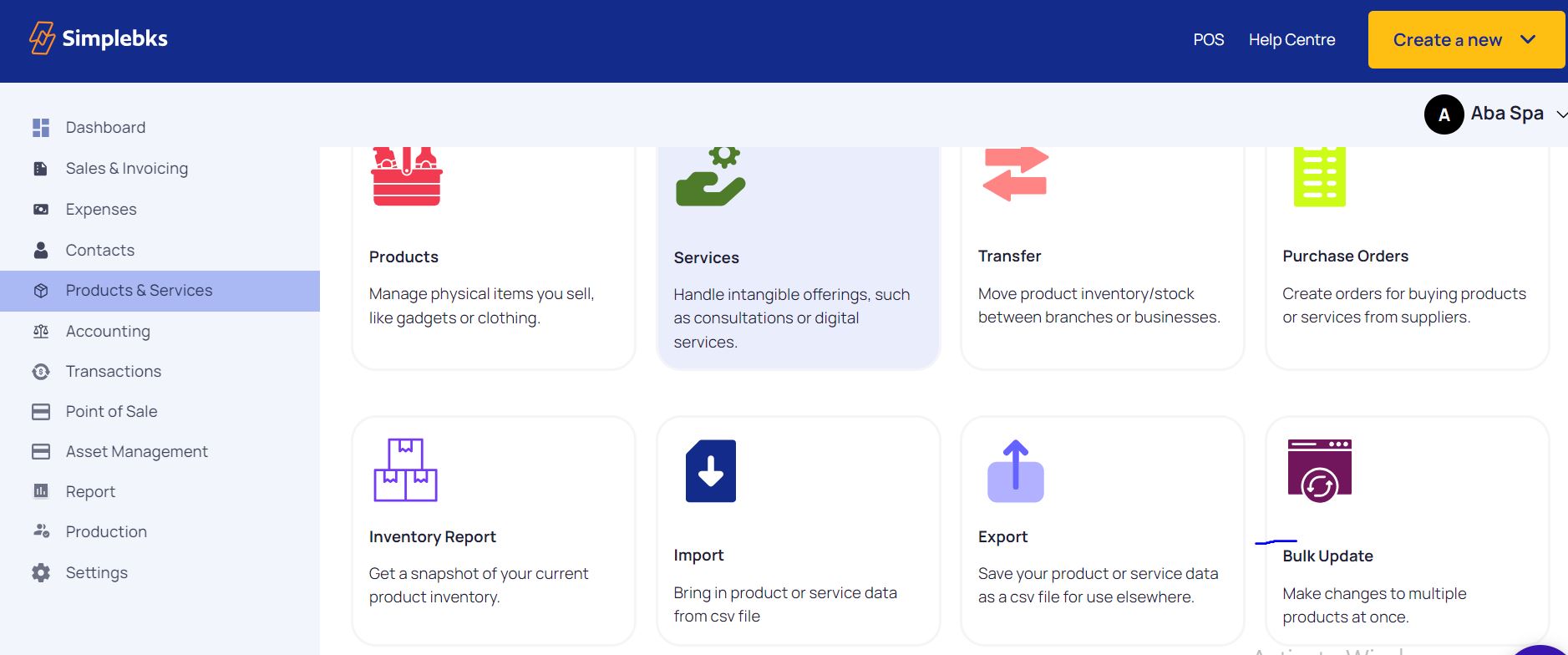
Click on choose file
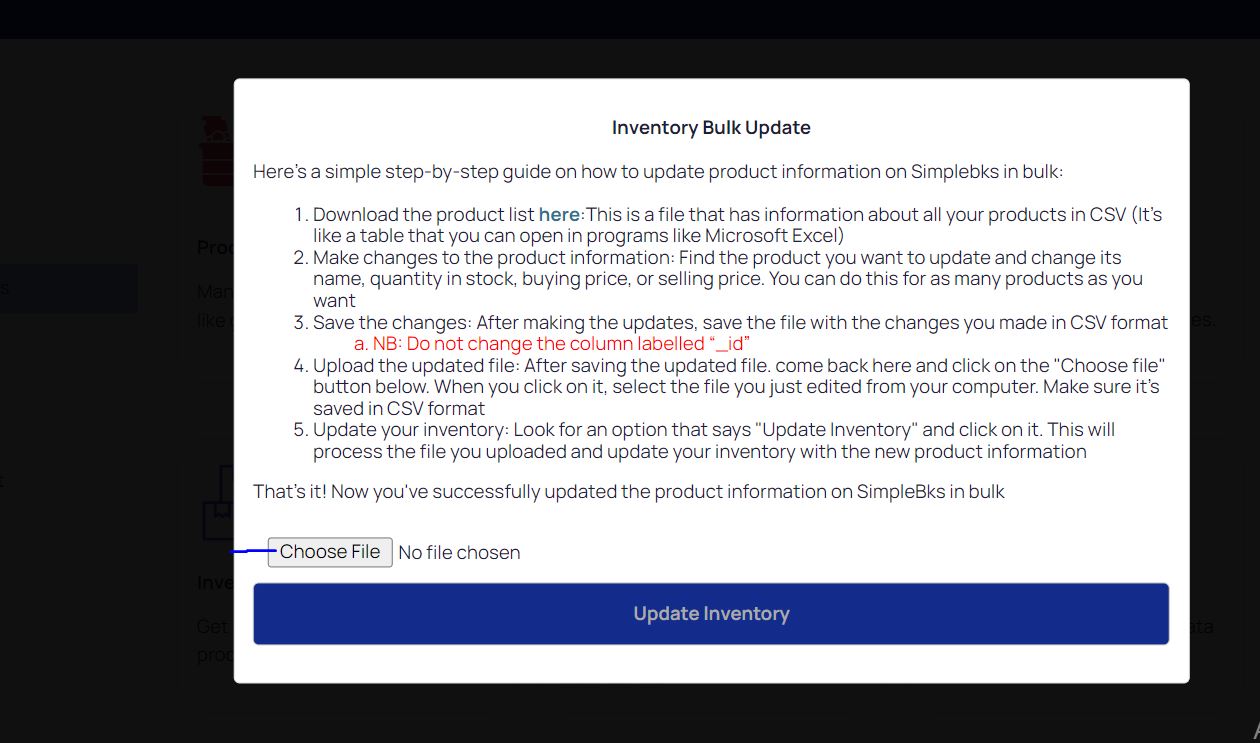
Choose your CSV file and click "Upload Inventory"
An Import module will display. Match your Column header with the right categorisation on Simplebks
4. The default categorization for SImplebks are:
Name:* The product Name will be displayed on your Inventory and Receipt
SKU:* "Stock Keeping Unit" is a unique code used to identify and track an inventory, or stock by a retailer
Barcode: Universal product code is usually found on product

Description: A short description of the product. This is only seen by the business and is not visible to customers in Receipt/Invoices
Category: Product category as classified by the business
Brand: Product brand
Size: Product size
Colour: Product colour
Measurement unit: Unit of measurement of the product e.g. KG,
Selling Price:* Default selling price
Buying Price:* Default buying price
Quantity:* Quantity in stock
NB: The only compulsory field in bulk upload of product is the name although we recommend that you also provide the items in asterisks*
5. Click on Complete Import to finish the bulk creation of products and upload stock.
6. All inventory quantity uploaded in bulk is created as a Purchase transaction for accounting.
Was this article helpful?