How to complete your business profile
updated 3 months ago
How do I complete my Business profile?
1. Go to Settings >> Business Profile
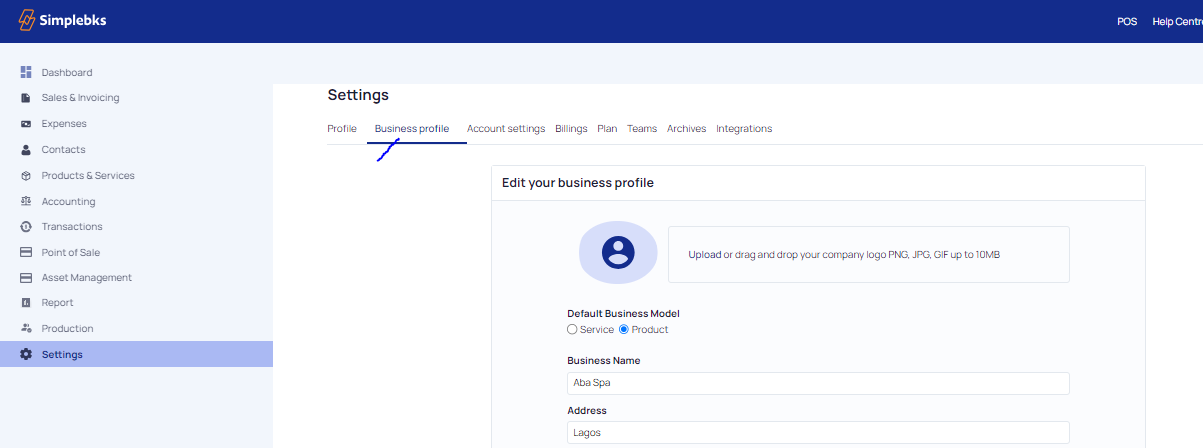
2. On the Business profile page, update your business information:

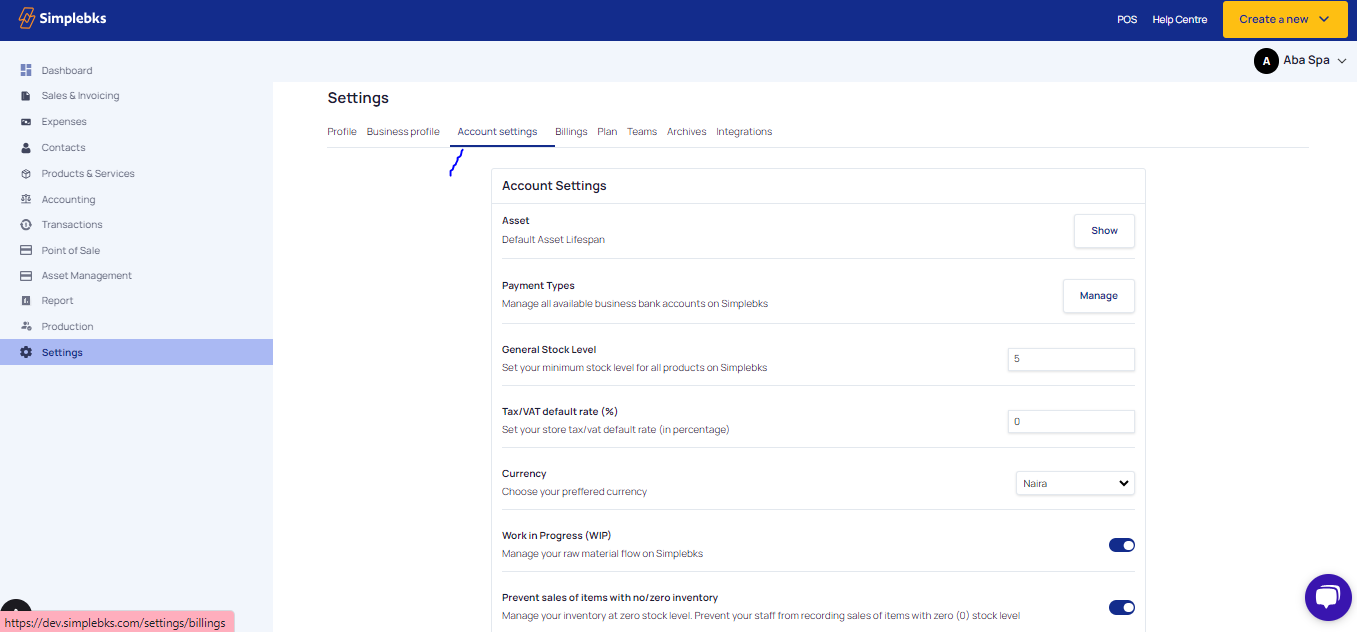
3. Move over to the account settings and enter the following details
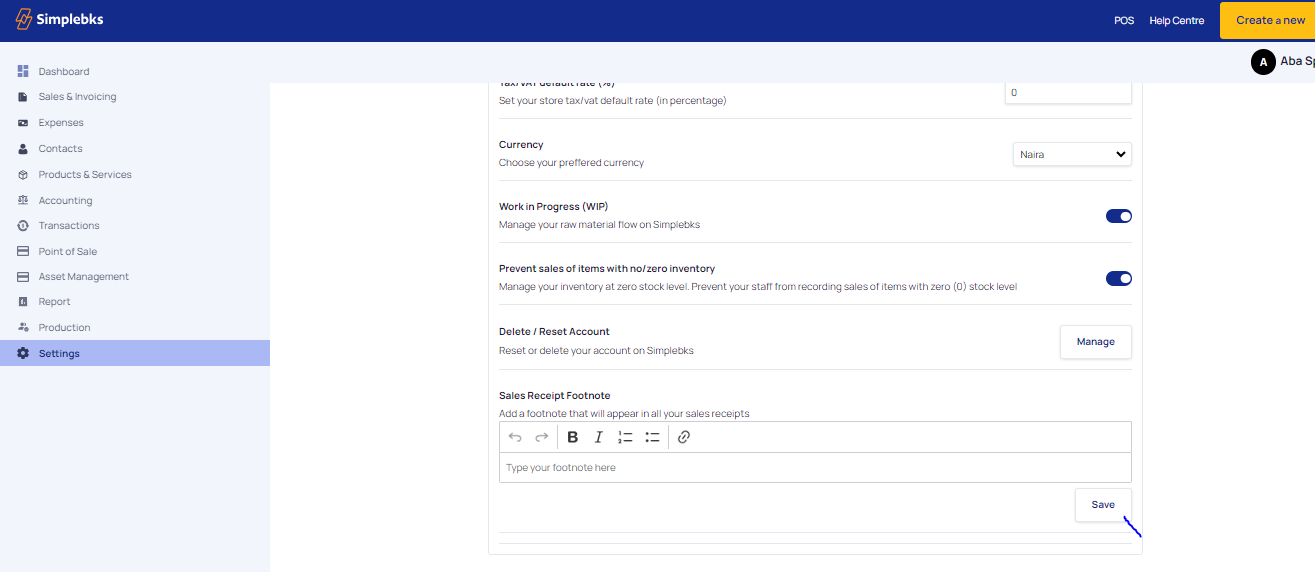
4. Click on Save
a. Logo: Upload your company logo.
b. Business Name: Review or update your Company name. This is what will be displayed in all your business reports and Invoices.
c. Address: Enter your current office address. This is what will be displayed in all your business reports and Invoices.
d. Country: Please select your major country of operation. Kindly note this will affect your default currency.
e. Zipcode: Enter your zip code.
f. Phone Number: Enter your business contact phone number. Multiple numbers can be inputted with a comma "," as a separator. This will be displayed in all your business reports and Invoices.
g. Email: Enter your company email address.
h. Bio: Give a brief description of your company.
i. Sector: Please select your business status.
j. Type of business: Please select the most relevant type for your business. If none is relevant, you can reach out to us via chat or email at [email protected] to update the list.
k. Number of staff: This is auto-populated based on the number of users invited to Simplebks.
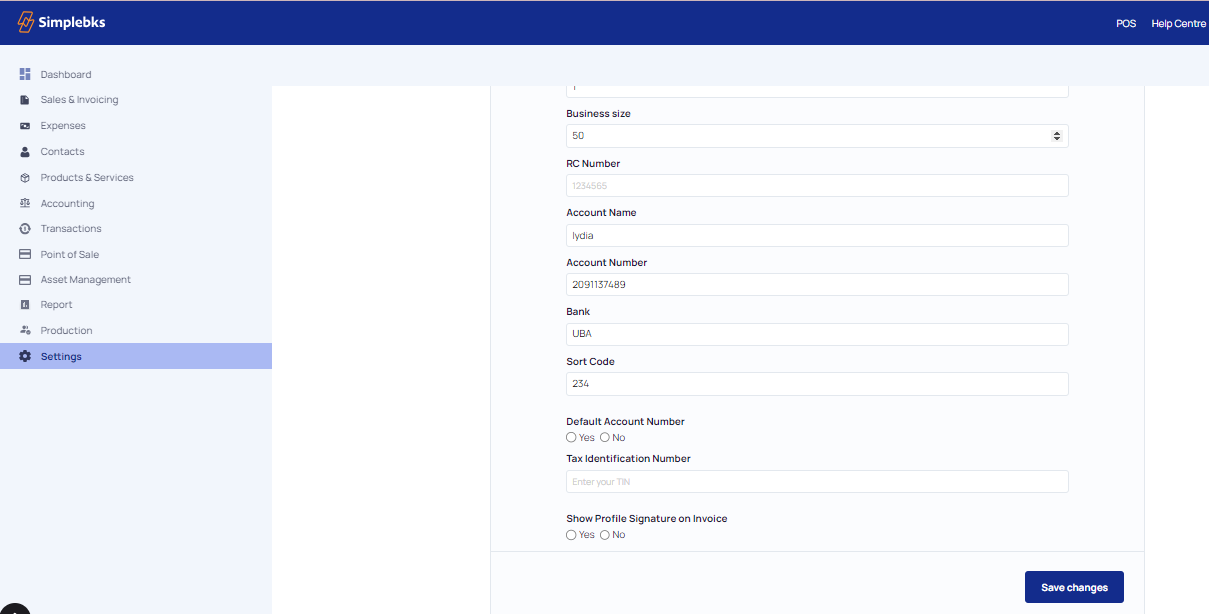
l. Business size: Please provide your average annual turnover/sales.
m. Click on Save changes and you're all set.
Was this article helpful?