Introduction To Customers.
updated 11 months ago
Welcome to the How-to-Customers page. This powerful feature is designed to help you effectively manage and nurture your customer relationships. By utilizing the How-to-Customers feature, you can streamline communication, maintain organized customer profiles, and optimize your overall customer management process. Right here, you can search for all details regarding a Customer, such as Customer ID, Customer Name, Email, Phone No, Role, Last Transaction, and Actions. click on Customers to view the Customer's page.
Overview of the Transaction Page
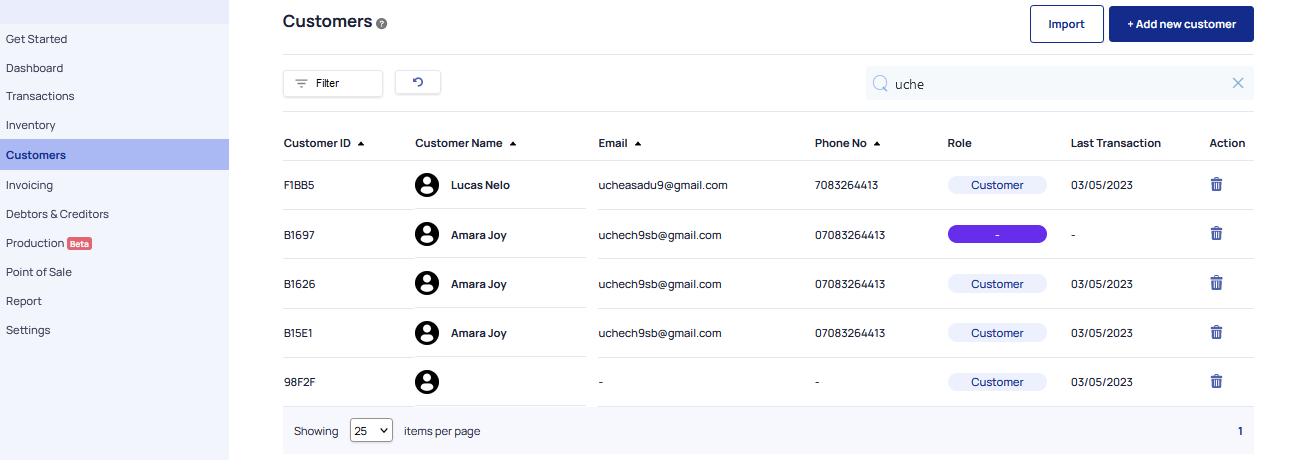
Filter- This feature allows you to narrow down and selectively display specific information or data based on certain criteria. Click on the Filter Icon and select the information needed> customer, vendor, debtor, investor creditor, supplier.
Search Customer- This means you are prompted to search for a customer by name, customer ID, or email. Go to the search bar and enter the customer's name or ID to view the customer's details and history
Customer ID- This is a numerical or alphanumeric code that serves as a reference for identifying and distinguishing individual customers in the database. This ID helps streamline the management of customer accounts and enables efficient tracking and organization of customer-related data. It allows for easier search and retrieval of customer information. Click on the Customer ID Icon to search for customer data.
Customer Name- This refers to the name or title associated with an individual or business entity that is considered a customer or client of your business. It represents the identity of the customer within the accounting system and is used to identify and differentiate them from other customers. Click on the customer name to view the customer's details and history. You can Archive and Edit a Customer
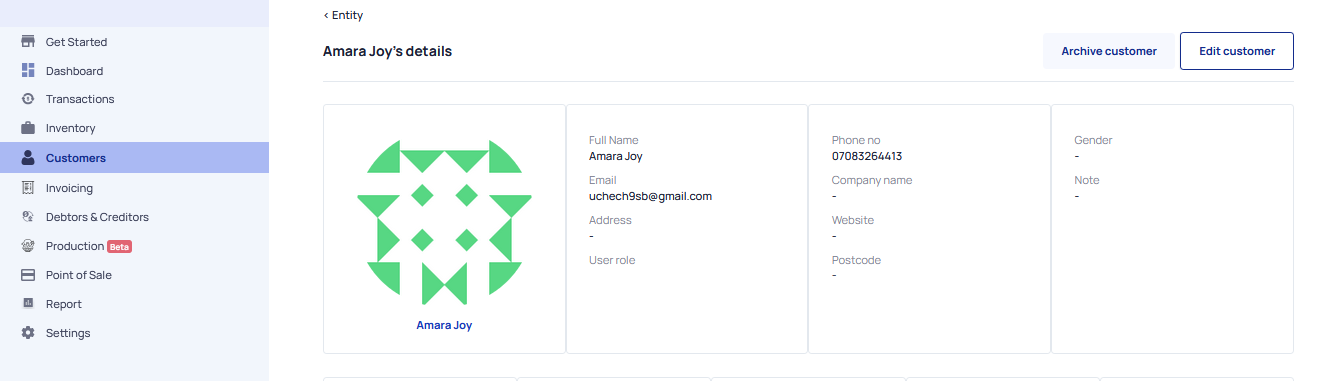
Email- By entering the customer's email, you establish a direct communication channel through which you can send invoices, statements, payment reminders, and other relevant information.
Phone No- It represents the customer's telephone or mobile number and serves as a means of communication and contact between your business and the customer.
Role> Customer
Last Transaction- This refers to the most recent financial activity or transaction performed by a specific customer. It represents the last recorded interaction between your business and that particular customer. It provides details about> the most recent sale, purchase, payment, or any other financial transaction involving that customer.
Actions > Go to the action icon to archive a Customer> Click Yes archive it!
This user-friendly interface features of the customer page make it accessible and adaptable to the needs of businesses of all sizes and industries. It simplifies the management of customer information, enhances communication, and strengthens customer relationships.
Was this article helpful?